How to migrate an incognito survey to your account?
You started fast by creating a survey without an account-and it worked! Now that the responses are rolling in, you likely want to edit questions, invite teammates, or simply keep your data organized in one place.
Good news: you can migrate an incognito survey into your account without losing a single response.
What Moves Over
When you import an incognito survey, everything stays intact:
- Survey structure: All questions, logic, and settings remain unchanged
- Links & QR codes: Existing share links and embeds keep working
- Responses: Every response collected so far is preserved
- Continuity: Anyone currently filling out the survey won’t notice anything
What You’ll Need
To migrate a survey, you need access to its admin page.
- On the original device: Open the survey’s admin dashboard directly
- On another device: Use the admin key (the unique link you saved or emailed to yourself when creating the survey)
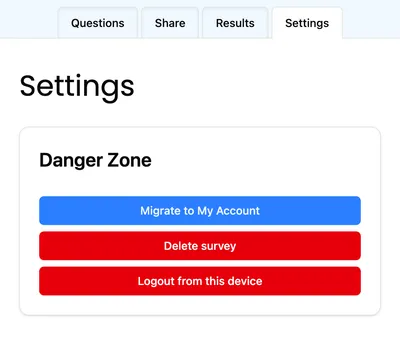
Step-by-Step Migration
- Open your incognito survey using the admin link
- Go to Settings
- Click Migrate to My Account
- Sign in or create an account
- Confirm the migration
Once confirmed, the survey will immediately appear in your main account dashboard.
What Changes After Migration
Once the migration is complete, the incognito version is retired:
- The incognito admin link stops working and redirects to your account
- The survey becomes fully editable inside your account
- You can invite team members and use all account features
- Access is now secured by your account instead of a browser-only link
What doesn’t change: The public survey URL, QR codes, and all sharing links remain exactly the same.
Why Move to an Account?
Incognito surveys are perfect for quick or one-off feedback. If a survey becomes more important, moving it into an account gives you:
- A safe backup and recovery path
- Team access and collaboration
- One place for all your surveys
Ready to move it over? Open your survey settings and click Migrate to Account.