Hack Your Survey: Techniques to Take Full Control over Your Data Collection
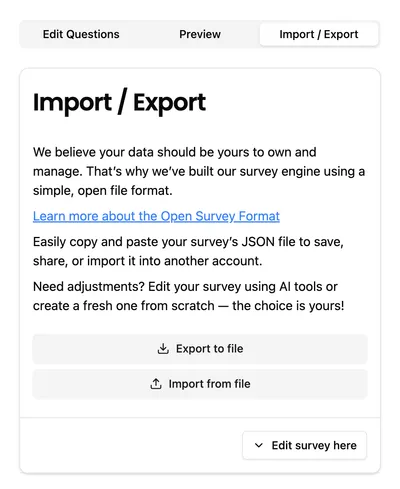
Most survey platforms lock you into their UI. We publish our JSON format openly. Edit surveys in VS Code, generate them programmatically, store them in Git - whatever works for your workflow.
This guide covers collection-level settings you can enable by editing survey JSON directly. These features give fine-grained control over question ordering and navigation.
How to Edit Survey JSON
Navigate to the Import / Export tab in the editor. Copy the JSON to your preferred code editor or export it to a file. Make your changes, then paste the JSON back or import the file to update the survey.
LLMs are particularly effective at this. Paste your JSON into ChatGPT or Claude and ask for specific changes like “shuffle the second collection” or “add pagination”. They handle the structure reliably.
Collection-Level Settings
Collections can be configured with special properties that affect how questions are displayed and how respondents move through them. These settings live directly on the collection object in your survey JSON.
Shuffle: Randomize Question Order
Randomizes question order for each respondent to reduce order bias. Each respondent gets a consistent random order that persists across page refreshes.
When to use:
- A/B tests where question order might influence answers
- Surveys with many similar questions to avoid pattern-based responses
- Reducing primacy and recency effects in rating scales
How to enable:
{
    "collections": [
        {
            "id": "my-collection",
            "shuffle": true,
            "elements": [
                /* Your questions here */
            ]
        }
    ]
}
Shuffle + Limit: Random Sampling from a Question Pool
Combine shuffle with limit to show each respondent a random subset of questions from a larger pool.
When to use:
- Large question banks where answering everything would be overwhelming
- “Answer 5 out of 20” style surveys
- Sampling across many similar items without increasing survey length
How to enable:
{
    "collections": [
        {
            "id": "my-collection",
            "shuffle": true,
            "limit": 5,
            "elements": [
                /* 20 questions total, each respondent sees 5 random ones */
            ]
        }
    ]
}
Step: Pagination (Wizard Mode)
Controls how many elements show at once. Respondents complete each step before moving on.
When to use:
- Breaking long collections into smaller chunks
- Classic “wizard” experiences (one question at a time)
How to enable:
{
    "collections": [
        {
            "id": "my-collection",
            "step": 1,
            "elements": [
                /* Your questions here */
            ]
        }
    ]
}
step: 1- one question per pagestep: 3- three questions per page
Custom Button Labels
Customize the text on navigation buttons (Back, Next, Submit) for each collection. Useful for creating branded experiences or matching your tone of voice.
When to use:
- Matching your brand’s voice (“Let’s Go!” instead of “Next”)
- Context-specific navigation (“Review My Answers” instead of “Back”)
How to enable:
{
    "collections": [
        {
            "id": "my-collection",
            "extensions": {
                "labels": {
                    "next": "Continue",
                    "back": "Go Back",
                    "submit": "Send My Responses"
                }
            },
            "elements": [
                /* Your questions here */
            ]
        }
    ]
}
Each collection can have different labels, allowing you to tailor the experience as respondents progress through your survey.