Use your own domain for survey links instead of share.youropinion.is. Setup is straightforward: add the domain in workspace settings, create one CNAME record in DNS, and wait for verification.
Custom domains are available in all paid plans. SSL is provisioned automatically after the domain becomes active.
Before you start
- Use a subdomain such as
feedback.example.comorsurveys.example.com - Avoid using your main apex domain such as
example.comunless it is dedicated to surveys and only serves this CNAME - Make sure you can edit the public DNS zone for that domain
- Decide whether this domain will be used by one workspace or several workspaces in the same account
Why the subdomain matters: a CNAME record cannot share the same hostname with other DNS records such as A, MX, or TXT. In practice, that means surveys.example.com is usually the right choice, while example.com usually is not.
Domain and path
YourOpinion stores two parts for a branded survey URL:
- Domain: the hostname, for example
feedback.example.com - Path: an optional workspace path, for example
/hr
If you’re using the domain for only one workspace, you can leave the path empty and use the root URL.
If you’re using the same domain for multiple workspaces within the same account, give each workspace its own path.
| Workspace | Domain | Path | Resulting base URL |
|---|---|---|---|
| HR | feedback.example.com | /hr | https://feedback.example.com/hr |
| Events | feedback.example.com | /events | https://feedback.example.com/events |
| Support | feedback.example.com | /support | https://feedback.example.com/support |
This is the important part: the same domain can be reused across multiple workspaces, but only inside the same account, and each workspace needs its own exact path.
Use simple path names. Letters, numbers, hyphens, and underscores are safe choices.
Step 1: Add the domain in workspace settings
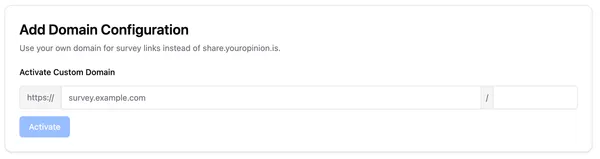
Open the workspace you want to brand, then go to Project Settings -> Domain.
Enter:
- The domain name, for example
feedback.example.com - The optional path, for example
hr - Click Activate
If this is your first workspace on the domain, you can leave the path empty. If it’s already used by another workspace in the same account, enter a unique path.
Step 2: Add the DNS record
Create a public DNS record for your chosen hostname:
| Type | Host | Target |
|---|---|---|
| CNAME | feedback.example.com | share.youropinion.is |
Depending on your DNS provider, you may enter only the host part such as feedback, or the full host name such as feedback.example.com.
Important details:
- Point the domain to
share.youropinion.is - Do not point it to an IP address
- If your DNS provider expects an absolute target, use
share.youropinion.is.with the trailing dot - Use public DNS, not an internal company-only DNS zone
Step 3: Wait for verification
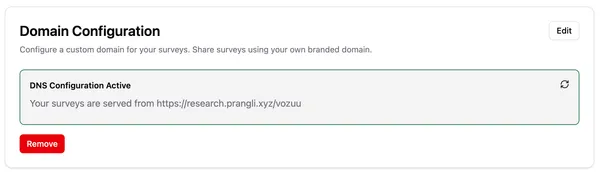
After the CNAME record is in place, YourOpinion verifies the domain automatically. Once verification succeeds:
- The domain status becomes active
- Survey links for that workspace use your branded URL
- SSL is provisioned automatically
In most cases this takes a few minutes, but DNS propagation can take longer depending on your provider.
Using one domain across multiple workspaces
This is useful when one account owns several separate workspaces but wants all survey traffic under one branded host.
For example:
- Customer research workspace:
https://feedback.example.com/research - Employee feedback workspace:
https://feedback.example.com/hr - Event feedback workspace:
https://feedback.example.com/events
Rules to keep in mind:
- The shared domain must belong to the same account
- Each workspace needs its own unique path
- A path cannot be claimed twice inside the same account
- The domain itself cannot be claimed by another account
If you expect to add more workspaces later, choose a clean path naming scheme now.